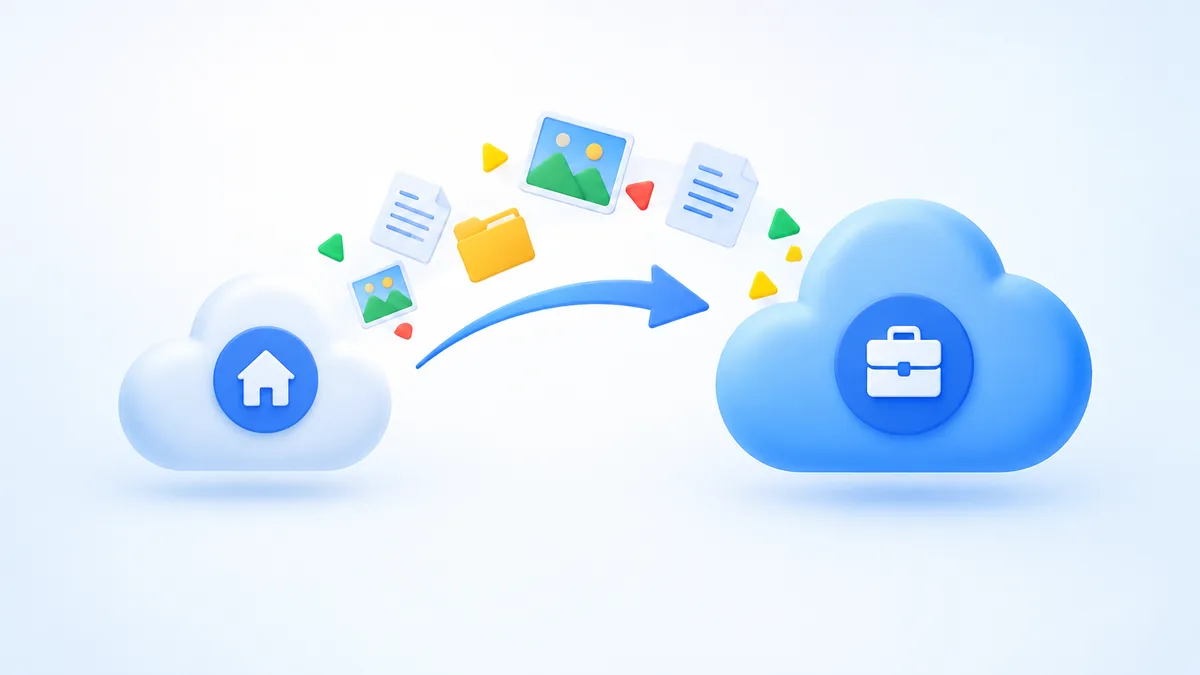
We often want to move a document or spreadsheet created in a personal Google Drive to a company account. However, sharing is not the same as transferring ownership: company access alone does not make the file the organization's property.
This guide covers three methods: making a copy, downloading and uploading, and using the Drive desktop application. The right approach depends on the file type, permissions, and administrator settings. Test your chosen method on a small sample before starting.
Why is direct ownership transfer restricted?
Ownership from a work or school Google Account can generally only be transferred to a user within the same organization. Transfers between personal and Workspace accounts should not be treated as a supported, general-purpose migration method. External sharing, copying, downloading, and moving files to shared drives may be subject to additional organizational policies.
An error message therefore does not necessarily indicate a technical fault; it reflects data governance boundaries. Do not try to bypass security restrictions: request approval to bring the data concerned into the company environment.
Method 1: Create an internal copy
For one or two Google Docs, Google Sheets, or Google Slides files, copying in the browser can be convenient if the owner and the organization allow it.
- In your personal account, share the file with your company email address. Grant the access required; do not automatically grant Editor access if it is not needed for copying.
- Sign in to your company account and find the file in the Shared with me view. A separate browser profile can help you avoid using the wrong account.
- Select Make a copy in Drive or in the File menu in Google Docs, Google Sheets, or Google Slides. If this option is unavailable, check the owner's copying/downloading restrictions and company policy.
- Choose the destination folder in your company account's My Drive or on an approved shared drive. A copy created in My Drive is owned by the account that makes the copy; content on a shared drive belongs to the organization.
- Open the copy, check its contents, and set permissions appropriate to the destination.
New file, new URL: the copy receives a new ID and link. Update existing links on websites, in emails, in internal documents, and in workflows.
Comments and version history
Copying does not automatically preserve the original's full version history. In some cases, the copy dialog in Google Docs, Google Sheets, and Google Slides may offer options to copy comments/suggestions; check the available options and how resolved comments are handled separately. Do not claim either that all comments are lost or that all are preserved.
Method 2: Download and upload
For images, PDFs, Office documents, and other uploaded files, downloading the files and then uploading them to the company's Drive can be practical.
- Select the source folder or files in your personal Drive.
- Select Download. Drive may package multiple files or folders into a ZIP archive; handle large collections in smaller batches that you can verify.
- Extract the archive to an appropriately secured local folder. Check the file list and any errors.
- In your company Drive, select New → File upload or Folder upload. Availability may depend on the browser and organizational restrictions.
- Wait for the upload to finish, then check the destination folders, file count, contents, and access.
Google files are not ordinary uploaded files
| File type | Migration | Additional checks |
|---|---|---|
| PDF, image, Office, and other binary files | Download/upload or supported desktop copying | Size, ability to open, new URL, permissions; original Drive version history is not transferred |
| Google Docs, Google Sheets, Google Slides | Permitted browser-based copying or export to a supported format | Formatting, formulas, charts, suggestions, comments, and related content |
| Google Forms and other specialized types | Separate procedure appropriate to the type | Responses, linked spreadsheet, automation; do not assume a complete ZIP-based migration |
When downloaded, Google Docs, Google Sheets, and Google Slides files may be exported to Office or PDF formats, for example. After uploading, the result may be an Office file or, through a separate conversion, a new Google file; neither guarantees all of the original functionality and history. Apps Script, external data connections, and linked files require separate review.
Uploading does not guarantee exclusive access: permissions inherited from the destination folder or shared drive may still apply. Do not assume that the old sharing list will transfer automatically.
Method 3: Google Drive for desktop
The desktop application can simplify handling large numbers of conventional files and subfolders on Windows or macOS. It is not a general-purpose migration tool for Google-native documents.
- Install the official Google Drive for desktop application.
- If your organization allows it, sign in with both your personal and company accounts. The application can handle multiple accounts; how they appear depends on the operating system and the streaming/mirroring setting.
- Open the appropriate locations for both accounts in File Explorer or Finder.
- Copy the files rather than moving them without verification. Right-click dragging may be specific to Windows; use your system's explicit Copy/Paste commands.
- Wait for synchronization to finish, review any errors, and verify the results in the company Drive's web interface as well.
On the desktop, Google-native files often appear as links rather than local files containing the full document content. Copying a .gdoc, .gsheet, or .gslides link does not prove that ownership of the document has transferred to the company account. For these files, use a verified browser-based copy or export process.
Benefits and limitations for larger batches
- Folder structures can be carried over for conventional files, but file names, special characters, and permissions must be checked.
- Synchronization can run in the background; after an internet outage, review the status and errors rather than assuming that it will always resume automatically without problems.
- Ensure that sufficient local and cloud storage is available. Copying streamed content may also require downloading it.
- For enterprise-scale volumes, a preliminary audit and migration plan are advisable; the application alone does not guarantee a complete, lossless migration.
Shared drives and folder structure
If your organization uses shared drives, it is advisable to create approved copies on the appropriate team's shared drive. This makes the content the property of the organization rather than an individual employee. Creating content, bringing in external files, and writing to the destination depend on the subscription, role, and administrator policy.
Plan folders, groups, and access in advance. Transferring ownership of the source folder does not automatically transfer ownership of every file inside it. A shortcut is not a copy either: it still points to the source.
Bonus: Files shared by others
If you do not own the source, first check whether you are authorized to copy it and bring it into the company environment.
- Where permitted, you can create your own copy, including directly from your company account if it has the appropriate access.
- An intermediate copy in your personal account is only necessary if the specific procedure calls for it; it is not a universally required step.
- For a Google-native file, dragging the intermediate copy's desktop link still does not replace actually copying the file.
Access through the Shared with me view and ownership of a file are different concepts. Adding a shortcut can help with navigation, but it does not transfer ownership.
Verification and common mistakes
- Open representative files and check formulas, embedded media, and linked content.
- Check the file count, folder structure, new links, and the correct company owner/destination drive.
- Test access with an authorized colleague and review external sharing.
- Create a separate preservation plan for important comments, history, and exports.
- Do not delete the original files until you have verified the contents, permissions, and usability of the migrated copies and clarified retention policies.
Sources and further help
- Ownership transfer requirements
- Exporting Google data
- Google Drive for desktop
- Our existing guide to setting up Drive for desktop
We help organizations implement Google Workspace and shared drives. Request help with migration.