
Downloading and setting up the Google Drive desktop app
1. Downloading the Google Drive desktop app
- Open your browser and visit the following page:
-
Click the “Download for Mac/PC” button.
-
Accept the terms, then download the application.
-
Open the downloaded file and follow the installation instructions.
Signing in and setting up sync
-
Launch the installed Google Drive app.
-
Sign in with your Google account.
-
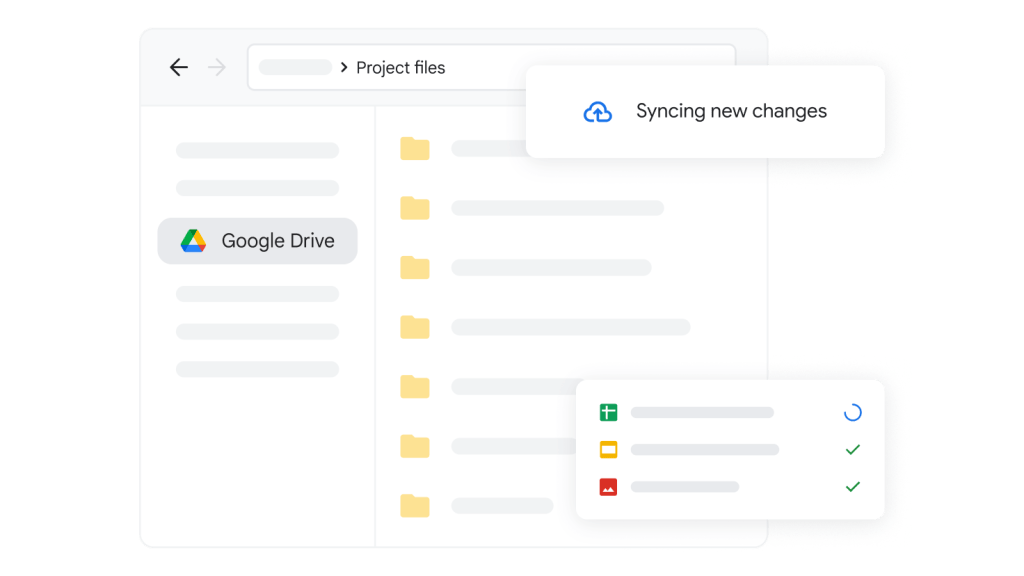
At the end of the setup you can choose:
-
Sync My Computer (automatically backs up files on your computer to Drive).
-
Online-only access (files are only downloaded when you open them). (We recommend this one)
- After configuring the settings, click “Done”.
Creating a Shared Drive shortcut on the desktop
-
Open File Explorer (Windows) or Finder (Mac).
-
In the left-hand menu, find the Google Drive folder.
-
Open the Shared Drives section.
-
Find the Shared Drive (or folder) you want to create a shortcut for.
-
On Windows:
-
Right-click the shared drive.
-
Select “Create shortcut”.
-
Accept that it cannot create the shortcut there, and agree to place it on the desktop instead.
- On Mac:
-
Click the shared drive.
-
Press Cmd + L to create the shortcut.
-
Drag the newly created shortcut to the desktop.
Verification
-
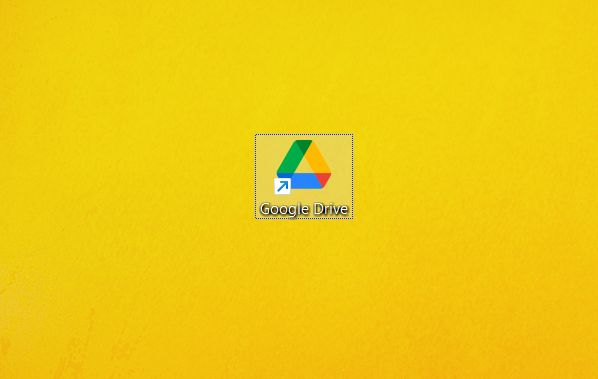
Open the shortcut on your desktop to make sure it works correctly.
-
If everything is fine, the Shared Drive files are easily accessible from the desktop or wherever you moved the shortcut.