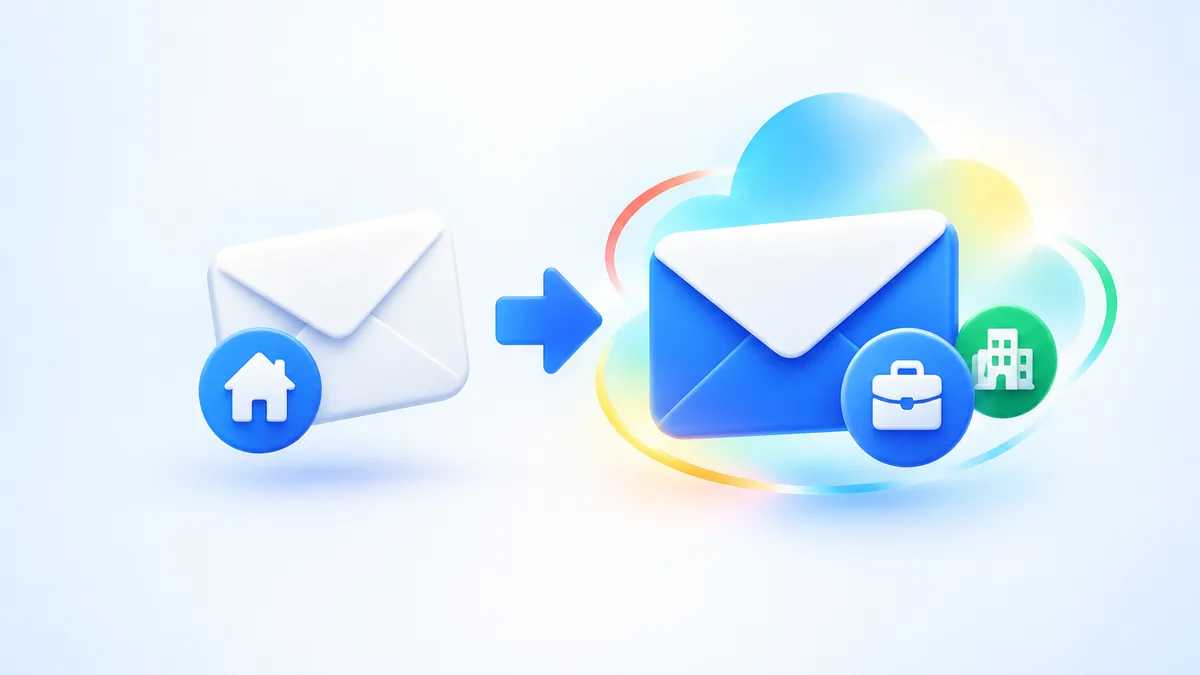
Migrating emails from a personal Gmail account to a corporate Google Workspace account requires preparing both the source and target accounts, selecting the right tool, and performing post-migration verification. This guide preserves the structure of the original document and distinguishes current Google Data import workflows from IMAP-based and third-party tool procedures.
Technical review: November 12, 2026. The original PDF contained several outdated DMS/IMAP steps and unverified performance metrics; these are clarified below. There are no embedded screenshots in the PDF, so text is not replaced with full-page images.
Phase 1: Critical preparations
Proper preparation is the foundation of a successful migration. The statement mentioned in the source that "90% of migrations fail due to preparation errors" is not supported by a cited source, so we do not treat it as a statistical fact.
1.1. Preparing the source account – personal Gmail
- IMAP: For personal Gmail accounts, IMAP is always enabled starting January 2025, and the "Enable/Disable IMAP" toggle has been removed. There is no need to turn it on as described in legacy guides. See the official Gmail documentation.
- Authentication: The current Google Data import Gmail workflow requests authorization from the source account owner. Do not hand over the source account's regular password or app password to the administrator. Prioritize "Sign in with Google" / OAuth-based access in tools that support it.
- 2-Step Verification: Keep the account protected. 2FA is not a universal technical prerequisite across all migration methods; however, it is required to generate an App Password.
- App Passwords only when necessary: Use them only with supported legacy IMAP tools that require them. They are not available on all accounts: for example, Advanced Protection, security-key-only 2FA, or organizational policies may restrict them. According to the Google App Passwords guide, more secure Google Sign-In is the primary choice. Handle temporary passwords securely and revoke them after the work is complete; changing the primary account password revokes app passwords.
- IMAP folder and label visibility: If you use an IMAP tool, verify that it can actually see the required messages and labels. Do not search for legacy "folder size limit" toggles that are no longer available in the current personal Gmail interface. Direct Gmail import does not rely on legacy client settings.
- Advanced Protection: Google's current Gmail import documentation specifies separate conditions for accounts enrolled in this program. Do not automatically disable protection; this is a checkpoint requiring security evaluation and account owner approval, or justification for selecting an alternative method.
1.2. Preparing the target account – Google Workspace
- Create the target user in the Admin console.
- Ensure a Google Workspace license and an enabled Gmail service. Select the appropriate edition based on organizational requirements; a specific Business plan is not a universal requirement.
- Verify available storage space based on the emails and attachments stored in the source. Total Google account storage usage may include other services, so do not assume the entire storage figure represents email volume alone.
- Prepare a cutover plan and an appropriate backup; designate the emails, labels, and date ranges to be verified.
Phase 2: Comparison of migration tools
| Tool / Method | Advantages | Limitations and conditions to verify | Typical use case |
|---|---|---|---|
| Google Data import (successor to DMS) | Google tool accessible from the Admin console; runs in the cloud; owner authorization for personal Gmail sources | Email import from a Gmail source does not automatically migrate contacts and calendars. Permissions, support, and reports must be verified; no guaranteed daily speed. | Migrating personal Gmail messages to a Workspace target account. |
| GYB – Got Your Back | Open-source, command-line Gmail backup and restore tool; Gmail API-based | Requires local execution, secure backup storage, and familiarity with current OAuth/API configurations. Subject to API quotas; not guaranteed to be faster than all IMAP procedures. | Backup and restore managed by a technical administrator. |
| BitTitan MigrationWiz | Commercial migration tool with documented endpoints and multi-pass procedures | Requires separate licensing and project setup. Verify personal Gmail source support, authentication, data types, and current requirements with the vendor. | More complex migration projects supported by the vendor. |
We do not repeat claims from the source such as "1–2 GB per day," "under 15 GB," "over 50 GB," "extremely reliable," and "zero-downtime" as established facts: these are not universally verified technical limits or guarantees. Run time is affected by data volume, source constraints, quotas, and the chosen method.
To use GYB, follow the project's own documentation. Do not apply unverified legacy commands or OAuth configurations. For MigrationWiz, check the current guide for the selected endpoint on the official BitTitan support page; unverified vendor-specific steps are not provided here.
Phase 3: Step-by-step Google Data import
The following process follows the personal Gmail section of Google's current Data import guide, rather than the legacy IMAP/DMS profile.
1. Opening and source authorization
- Sign in to the Google Admin console using a Super Admin account of the target organization.
- Navigate to Data → Data import & export → Data import.
- Under the Gmail source, click Import.
- Enter the address of the personal Gmail source and select Request authorization.
- The account owner approves the connection via the request received. If status is Pending authorization, wait for approval; if Connected, you may proceed. Delete a rejected request before submitting a new one. The request expires after 24 hours; in this case, use Refresh request.
In this workflow, you do not need to enter imap.gmail.com or an app password. Migrations from another Google Workspace organization follow a different process with domain-level authorization; do not confuse it with a personal Gmail source.
2. Specifying the target user
In the Target account field, enter the Workspace account with an active license and Gmail enabled, then click Save. Verify the source–target pair before running.
3. Migration settings
- Start date: Specify the required start date. If only more recent emails are needed initially, choose this deliberately, and record the subsequent transfer of older content in a separate verified plan. A delta import alone does not guarantee bringing over a previously excluded earlier time window.
- Deleted emails and spam: Use the Import deleted emails and Import spam emails options to decide whether they are needed. Excluding them is not mandatory in every scenario.
- Label exclusions: In the Exclude specific labels field, enter labels and sub-labels separately using full paths, such as Travel, Travel/Asia. Excluding All Mail will result in no emails being imported at all, according to Google's documentation.
- Save your choices.
4. Initiation and monitoring
Click Start import. Monitor discovered, successful, skipped, and failed items, as well as imported and failed messages. Starting the import creates domain-wide delegation for the import service in the target account.
The "1–2 hour initialization" mentioned in the source is not a guaranteed duration. Do not randomly start a new project; inspect the status, report, and access first. Export the completion report and review skipped or failed items as well.
Phase 4: Troubleshooting
Authentication or authorization error
In the current Gmail import workflow, verify owner authorization, request expiration, and target account service availability. For third-party IMAP tools, verify authentication methods supported by the provider and check for revoked app passwords. Do not treat Error code 110 from the source as the exact same Gmail security block in every tool; never approve unrecognized sign-in attempts.
Disconnection or quota limits
We do not universally apply the source's Error code 18012 or the explanation of "roughly 2.5 GB daily, wait 24 hours." Legacy DMS error codes, IMAP bandwidth caps, and Gmail API quotas operate under distinct rules. Review the specific report and official limits of the tool in use; follow the recommended retry guidance. There is no verified fix that uniformly requires exactly 24 hours.
Labels and folder structure
Gmail uses labels: a single message can carry multiple labels. In an IMAP tool, the same message may appear across multiple folder views, but this does not imply that the current Google Data import tool will inevitably triple data storage. Verify messages and labels in a test import. Do not automatically flatten or delete the source label structure without a prior backup and user consent.
Editorial and security checkpoints
- If Advanced Protection is enabled, review the chosen migration method separately; modifying security settings must be a deliberate, authorized decision.
- For GYB and MigrationWiz, finalize exact authentication mechanisms and endpoint limitations based on the deployed software version and current vendor documentation.
- Verify imported content using genuine data samples; importing this article does not prove that every step can be executed within a specific customer environment.
Phase 5: Post-migration tasks
- Delta import: Use the completed Google import's native delta operation to copy over any messages that arrived at the source in the interim. Do not start an unvetted new import project in its place. Run time is not guaranteed to be "a few minutes"; re-verify the report.
- Source account transition: You do not manage the MX records for the personal @gmail.com domain. If needed, configure an automated out-of-office reply referencing the new corporate address and coordinate interim usage. Do not delete the old account before verifying completeness and data retention requirements.
- Contacts: Requires separate export/import using appropriate CSV or vCard formats. Check fields and duplicates.
- Calendars: Requires a separate sharing, export, or import procedure; verify events, time zones, and permissions after ICS import. Email import does not automatically transfer all calendar settings.
- Mailbox verification: Inspect old and new emails, sent items, attachments, read/unread states, labels, and critical date ranges; test sending and receiving on the corporate account.
- Secure wrap-up: Save reports, complete and close the migration according to tool specifications, review access privileges, delete password-bearing working files, and revoke any app passwords or tool permissions that are no longer needed.
Related guides and assistance
- IMAP Email Migration to Google Workspace – Complete Guide
- Google Workspace or Free Gmail?
- Google Workspace Migration and Deployment
Need assistance with your Google Workspace migration? Contact us!