Návody a řešení problémů
Stažení a nastavení desktopové aplikace Google Drive
Publikováno: 2025-03-09
Tento článek zatím není plně přeložen do tohoto jazyka — níže je anglická verze.

Downloading and setting up the Google Drive desktop app
1. Downloading the [Google Drive](https://cloudtender.hu/googledrive/) desktop app
- Open your browser and visit the following page:
- Click the “Download for Mac/PC” button.
- Accept the terms, then download the application.
- Open the downloaded file and follow the installation instructions.
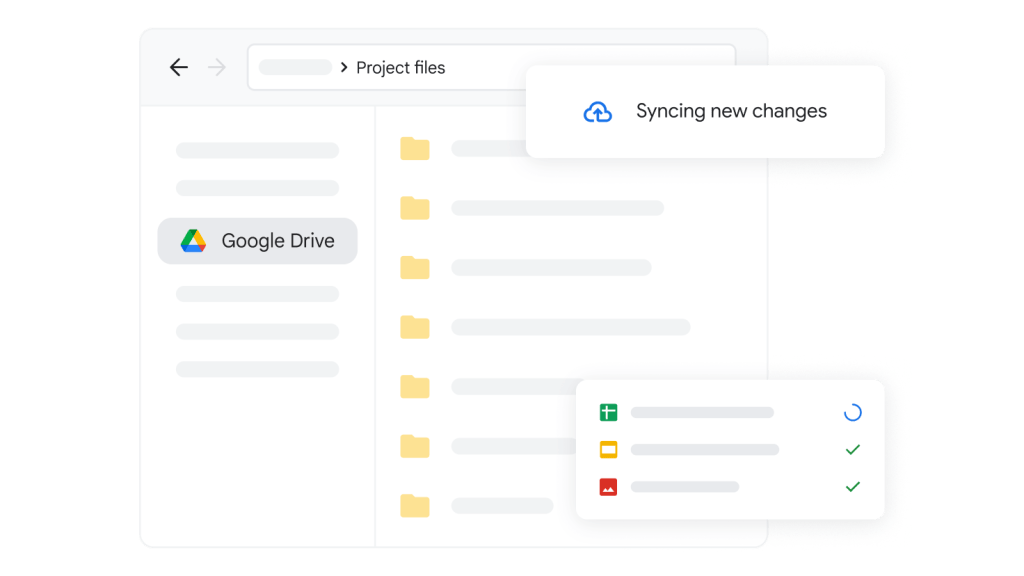
Signing in and setting up sync
- Launch the installed Google Drive app.
- Sign in with your Google account.
- At the end of the setup you can choose:
- Sync My Computer (automatically backs up files on your computer to Drive).
- Online-only access (files are only downloaded when you open them). (We recommend this one)
- After configuring the settings, click “Done”.
Creating a Shared Drive shortcut on the desktop
- Open File Explorer (Windows) or Finder (Mac).
- In the left-hand menu, find the Google Drive folder.
- Open the Shared Drives section.
- Find the Shared Drive (or folder) you want to create a shortcut for.
- On Windows:
- Right-click the shared drive.
- Select “Create shortcut”.
- Accept that it cannot create the shortcut there, and agree to place it on the desktop instead.
- On Mac:
- Click the shared drive.
- Press Cmd + L to create the shortcut.
- Drag the newly created shortcut to the desktop.
Verification
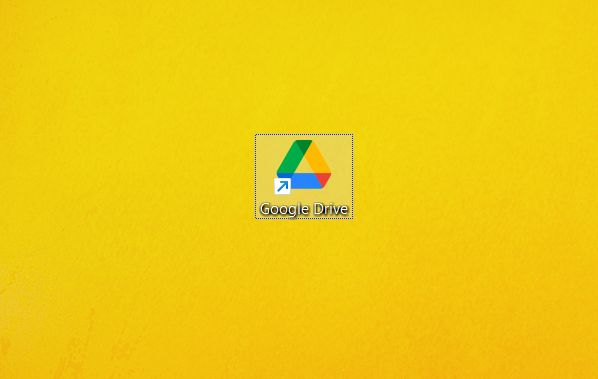
- Open the shortcut on your desktop to make sure it works correctly.
- If everything is fine, the Shared Drive files are easily accessible from the desktop or wherever you moved the shortcut.